How to Clean a CSV File Before Importing It (2026 Guide)
Learn how to clean a CSV file before importing it by fixing duplicate rows, inconsistent headers, broken columns, encoding problems, dates, empty values, and leading zeros.
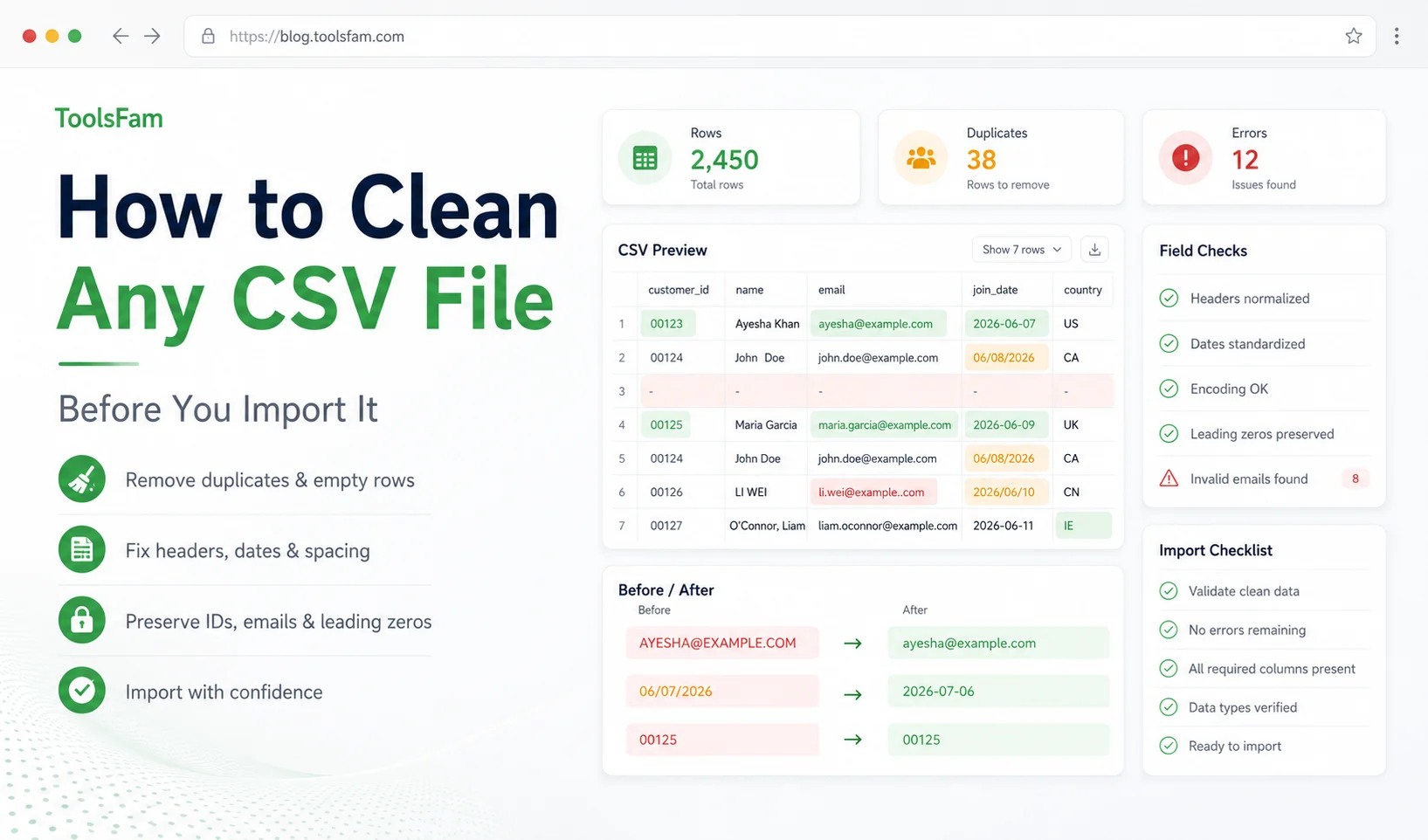
CSV files are used everywhere. Businesses export customer lists from CRMs, marketers download campaign reports, developers move data between APIs and databases, and store owners upload product catalogues to e-commerce platforms.
The format looks simple, but CSV import problems are extremely common. A file may open correctly in a spreadsheet and still fail when imported into another system. Duplicate rows, inconsistent headers, unsupported characters, broken quotes, changed dates, missing leading zeros, and unexpected delimiters can all damage the data.
This guide explains how to clean a CSV file before importing it, how to identify common problems, and how to create a safer repeatable workflow using browser tools such as the ToolsFam CSV Cleaner and Table Cleaner.
What is a CSV file?
CSV stands for comma-separated values. A CSV file stores tabular data as plain text. Each line normally represents one record, and individual values are separated by a delimiter such as a comma.
A basic customer CSV might look like this:
customer_id,name,email,country
00125,Ayesha Khan,ayesha@example.com,Pakistan
00126,Daniel Smith,daniel@example.com,United Kingdom
00127,Sara Ali,sara@example.com,United Arab Emirates
CSV files are lightweight, easy to generate, and supported by spreadsheets, databases, CRMs, analytics tools, accounting software, and programming languages.
The problem is that different programs can interpret the same CSV file differently. Some systems expect commas, while others expect semicolons. Some automatically convert values into numbers or dates. Others reject the entire file when one row contains an unexpected column.
Why should you clean a CSV before importing it?
A CSV import can affect thousands of records at once. Importing an unclean file may create duplicate customers, overwrite existing products, break email campaigns, damage identifiers, or place values in the wrong database columns.
Cleaning the file first helps you:
- Prevent duplicate records
- Keep the correct number of columns in every row
- Normalize inconsistent column names
- Preserve phone numbers, postal codes, and identifiers
- Remove empty or unnecessary rows
- Find malformed quotes and delimiters
- Standardize dates and boolean values
- Catch invalid email addresses
- Reduce import failures
- Make the imported data easier to search and maintain
1. Make a backup before changing the CSV
Never clean the only copy of an important data export. Create a copy before removing rows, renaming columns, changing delimiters, or converting values.
A simple naming pattern can prevent confusion:
customers-original-2026-06-29.csv
customers-cleaned-2026-06-29.csv
customers-imported-2026-06-29.csv
Keep the original file unchanged so that you can compare the cleaned output or recover information if something is removed accidentally.
2. Check the header row
The first row normally contains the column names that tell the destination system where each value belongs.
Problematic headers often contain spaces, inconsistent capitalization, special characters, duplicate names, or invisible whitespace:
Customer ID, customer name ,E-Mail Address,Country/Region,Customer IDA cleaner version would be:
customer_id,customer_name,email,countryUse simple and predictable header names. Lowercase letters and underscores are widely compatible with databases and APIs.
Before importing, confirm that:
- Every column has a name
- No header is repeated
- Leading and trailing spaces are removed
- The names match the destination import template
- Required columns are included
- Unused columns are removed when appropriate
3. Remove completely empty rows
CSV exports sometimes contain empty rows at the bottom or between records. These rows can be interpreted as blank records by an importer.
Remove rows where every column is empty. Be more careful with partially empty rows because an empty value may be valid. For example, a customer may not have provided a secondary phone number.
The goal is not to remove every blank cell. The goal is to remove records that contain no useful data.
4. Remove duplicate records carefully
Duplicate rows are one of the most common CSV problems. They often appear when multiple exports are combined or when the same report is downloaded more than once.
Do not remove duplicates based only on a customer name. Two different people may have the same name. Choose a reliable unique field such as:
- Customer ID
- Product SKU
- Order number
- Email address
- Transaction ID
- External system ID
For example, these records appear similar but should not automatically be treated as duplicates:
101,Sara Khan,sara.personal@example.com
205,Sara Khan,sara.business@example.com
When no reliable unique identifier exists, review possible duplicates manually before deleting them.
5. Ensure every row has the same number of columns
If the header contains five columns, each record should normally contain five fields. A misplaced comma can make one row appear to contain six or seven columns.
This row is broken because the company name contains an unquoted comma:
1001,Ali Khan,Khan Trading, Supplies,ali@example.com,PakistanThe company name should be wrapped in double quotes:
1001,Ali Khan,"Khan Trading, Supplies",ali@example.com,PakistanAccording to commonly used CSV conventions, fields containing commas, double quotes, or line breaks should be enclosed in double quotes.
6. Fix quotation marks correctly
Double quotes inside a quoted field must be escaped by doubling them.
Incorrect:
1002,"24" Monitor",149.99Correct:
1002,"24"" Monitor",149.99The two consecutive double quotes represent one literal quote inside the field.
Do not attempt to fix complex CSV files by simply splitting every line at each comma. A valid field may contain commas or even line breaks when it is quoted correctly.
7. Confirm the delimiter
Despite the name, not every file described as CSV uses commas. Files exported under some regional settings may use semicolons because commas are used as decimal separators.
Common delimiters include:
- Comma:
, - Semicolon:
; - Tab
- Pipe:
|
Open the file in a plain text editor and inspect the first few lines. Make sure the selected delimiter does not also appear frequently inside unquoted values.
If the file is tab-separated, consider converting it with the ToolsFam TSV to CSV Converter before importing it into a system that expects commas.
8. Preserve leading zeros
Values such as postal codes, employee numbers, telephone prefixes, SKUs, and account IDs may begin with zero:
00125
00492
03001234567
Spreadsheet software may interpret these values as numbers and display them without the leading zeros:
125
492
3001234567
These identifiers should usually be treated as text, not numbers. When opening a CSV in spreadsheet software, import the file and explicitly mark identifier columns as text instead of opening the file with automatic type detection.
Always compare the final CSV in a plain text editor before uploading it. The spreadsheet display and the actual saved file are not always identical.
9. Protect long identification numbers
Long identifiers can be converted into scientific notation:
123456789012345678may be displayed as:
1.23457E+17Some spreadsheet programs can also lose precision in very long numeric values. Treat long identifiers as text unless mathematical operations are required.
This applies to:
- Tracking numbers
- Card test identifiers
- Database IDs
- Barcode values
- Order references
- IMEI-like identifiers
10. Standardize date formats
A value such as 06/07/2026 is ambiguous. It could represent June 7 or July 6 depending on regional settings.
For system imports, use an unambiguous date format such as:
2026-07-06The ISO-style YYYY-MM-DD format is easier for people and systems to interpret consistently.
Check whether the destination expects:
- Date only:
2026-07-06 - Date and time:
2026-07-06 14:30:00 - UTC timestamp:
2026-07-06T14:30:00Z - A specific regional format
Do not mix multiple formats in the same column.
11. Normalize boolean values
A single column may contain several representations of the same value:
Yes
yes
Y
TRUE
1
Active
The destination system may accept only one format. Convert the values consistently according to its requirements.
For example:
true
false
or:
1
0
Do not assume that Yes, 1, and true are interchangeable for every importer.
12. Trim unnecessary spaces
Invisible spaces can make two values appear identical while they are technically different:
"Pakistan"
"Pakistan "
" Pakistan"
Trim leading and trailing whitespace from headers and ordinary text fields. Be cautious with fields where spaces are meaningful, such as formatted notes or fixed-width codes.
You should also check for:
- Repeated spaces inside names
- Non-breaking spaces copied from websites
- Tabs hidden inside fields
- Unexpected line breaks
- Invisible Unicode characters
13. Check character encoding
Character encoding problems can turn readable names into broken symbols. This often affects accented characters, Arabic, Urdu, Chinese, emojis, and special punctuation.
A broken result may look like:
José
München
’
customer_id
UTF-8 is a practical default for modern systems, but you should still confirm what the destination supports. Some spreadsheet workflows recognize UTF-8 files more reliably when a byte order mark is present, while some import systems prefer UTF-8 without it.
Test a small file containing multilingual characters before importing the full dataset.
14. Validate email addresses
When importing subscribers, customers, or leads, check email values before sending them to an email marketing platform or CRM.
Common problems include:
- Missing
@symbols - Spaces inside addresses
- Duplicate addresses
- Accidental commas or semicolons
- Empty required email fields
- Obvious placeholder values
You can use the ToolsFam Email List Validator to separate structurally valid and invalid addresses and create a cleaner deduplicated list.
Syntax validation does not guarantee that an inbox exists, but it catches many avoidable formatting mistakes.
15. Remove sensitive information you do not need
CSV files can contain customer details, internal IDs, phone numbers, addresses, financial records, or private notes.
Before sharing or importing the file, remove columns that the destination does not require. This reduces accidental exposure and keeps the dataset easier to manage.
Do not include production passwords, access tokens, private API keys, payment card details, or unrelated personal information in CSV imports.
16. Test with a small sample first
Do not use the full file for the first import. Create a sample with approximately five to twenty representative rows.
Include examples containing:
- An empty optional value
- A value containing a comma
- A name with non-English characters
- A leading-zero identifier
- A long number
- A date value
- A quoted value
Import the sample and verify that every value reaches the correct destination field. After the sample succeeds, import the complete cleaned file.
A practical CSV cleaning workflow
- Create an untouched backup of the original file.
- Open a copy in a CSV-aware tool.
- Inspect the delimiter and character encoding.
- Normalize and deduplicate the headers.
- Remove completely empty rows.
- Trim unnecessary whitespace.
- Check that every row has the expected number of columns.
- Fix quoted commas, quotes, and line breaks.
- Review possible duplicate records.
- Standardize dates and boolean fields.
- Protect leading zeros and long identifiers.
- Validate important fields such as email addresses.
- Remove unnecessary sensitive columns.
- Export the cleaned file.
- Test a small sample import.
- Import the complete file only after verifying the sample.
Useful ToolsFam tools for CSV work
- CSV Cleaner and Table Cleaner — trim whitespace, remove empty rows, normalize headers, and deduplicate CSV records.
- CSV to JSON Converter — convert CSV rows into structured JSON objects for APIs and development workflows.
- CSV to Excel Converter — create a downloadable Excel workbook from CSV data.
- Excel to CSV Converter — convert the first worksheet of an Excel file into CSV.
- Universal Data Converter and Cleaner — detect, clean, preview, and convert structured data between common formats.
- Email List Validator — validate, separate, and deduplicate email lists.
- TSV to CSV Converter — convert tab-separated records into comma-separated data.
- CSV to JSON — prepare CSV data for APIs, JavaScript applications, testing, and integrations.
CSV cleaning example
Here is an unclean CSV:
 Customer ID ,Name,Email,Join Date,Country
00125, Ayesha Khan ,AYESHA@EXAMPLE.COM,06/07/2026,Pakistan
00125, Ayesha Khan ,AYESHA@EXAMPLE.COM,06/07/2026,Pakistan

00127,"Ali Trading, Supplies",invalid-email,7-6-26,Pakistan
A cleaned version might look like:
customer_id,name,email,join_date,country
00125,Ayesha Khan,ayesha@example.com,2026-07-06,Pakistan
00127,"Ali Trading, Supplies",,2026-07-06,Pakistan
The cleaned version:
- Uses normalized headers
- Removes the duplicate record
- Removes unnecessary spaces
- Uses a consistent date format
- Preserves the leading-zero customer ID
- Keeps the comma-containing company name quoted
- Removes the invalid email value for later review
Common CSV cleaning mistakes
Opening the file and immediately saving it
Spreadsheet software may automatically change dates, long numbers, and identifiers before you notice. Inspect important columns before saving.
Removing every row with an empty cell
Optional fields can be blank. Remove completely empty records, not every record containing one blank value.
Deduplicating by name only
Names are not always unique. Prefer stable identifiers, order numbers, SKUs, or carefully normalized email addresses.
Replacing every comma
Commas inside correctly quoted values are valid. Replacing all commas can destroy addresses, product descriptions, and company names.
Trusting the spreadsheet preview
A spreadsheet view may hide encoding markers, quotes, delimiters, and the exact stored value. Inspect the final output in a text editor or CSV-aware tool.
Importing the full file without testing
A small test import can reveal mapping and formatting problems before thousands of records are affected.
FAQ
How do I clean a CSV file online?
Start by checking headers, duplicate rows, empty records, delimiters, encoding, and column counts. The ToolsFam CSV Cleaner and Table Cleaner can help normalize and clean common CSV problems directly from the browser.
Why is my CSV importing into the wrong columns?
The file may contain unquoted commas, inconsistent delimiters, malformed quotation marks, or rows with different numbers of fields. Inspect the broken row in a plain text editor and make sure values containing commas are enclosed in double quotes.
Why are leading zeros disappearing from my CSV?
Spreadsheet software may interpret identifiers as numbers. Import the file while treating the affected column as text, and verify the saved result in a plain text editor.
Why does my CSV show strange characters?
The file and the program opening it may be using different character encodings. UTF-8 is a common default, but some applications handle UTF-8 files differently depending on whether a byte order mark is included.
How can I remove duplicate rows from CSV data?
Select a reliable unique field such as a customer ID, email, product SKU, or transaction number. Do not automatically deduplicate only by name unless you have reviewed the results.
Can I convert a cleaned CSV file to JSON?
Yes. After cleaning and validating the column structure, use the ToolsFam CSV to JSON Converter to turn each row into a structured JSON object.
Should CSV dates use DD/MM/YYYY or MM/DD/YYYY?
Avoid ambiguous regional formats when possible. The YYYY-MM-DD format is easier for systems and international teams to interpret consistently.
How many rows should I use for a test import?
Five to twenty representative records are usually enough for an initial test. Include difficult cases such as commas, quotes, empty optional fields, multilingual text, dates, and leading-zero identifiers.
Final CSV import checklist
- Original file backed up
- Headers normalized and unique
- Required columns included
- Completely empty rows removed
- Possible duplicates reviewed
- Column counts consistent
- Quoted commas and quotation marks valid
- Delimiter confirmed
- Encoding confirmed
- Leading zeros preserved
- Long identifiers stored as text
- Dates standardized
- Boolean values standardized
- Whitespace cleaned
- Email values checked
- Unnecessary sensitive columns removed
- Small sample imported successfully
Final takeaway
A CSV file should never be imported blindly. Even a file that looks correct in a spreadsheet can contain broken delimiters, invisible spaces, inconsistent dates, duplicate records, encoding problems, or identifiers that have been silently changed.
The safest workflow is simple: back up the original file, clean the structure, normalize important fields, test a small sample, and only then import the complete dataset.
Start with the ToolsFam CSV Cleaner and Table Cleaner, then use related ToolsFam converters to prepare the cleaned data for Excel, JSON, APIs, databases, and other systems.