Image Compression for Websites: PNG, JPG, WebP, and AVIF Explained
A practical guide to choosing PNG, JPG, WebP, and AVIF for website images, with a workflow for faster pages, cleaner assets, and better SEO performance.
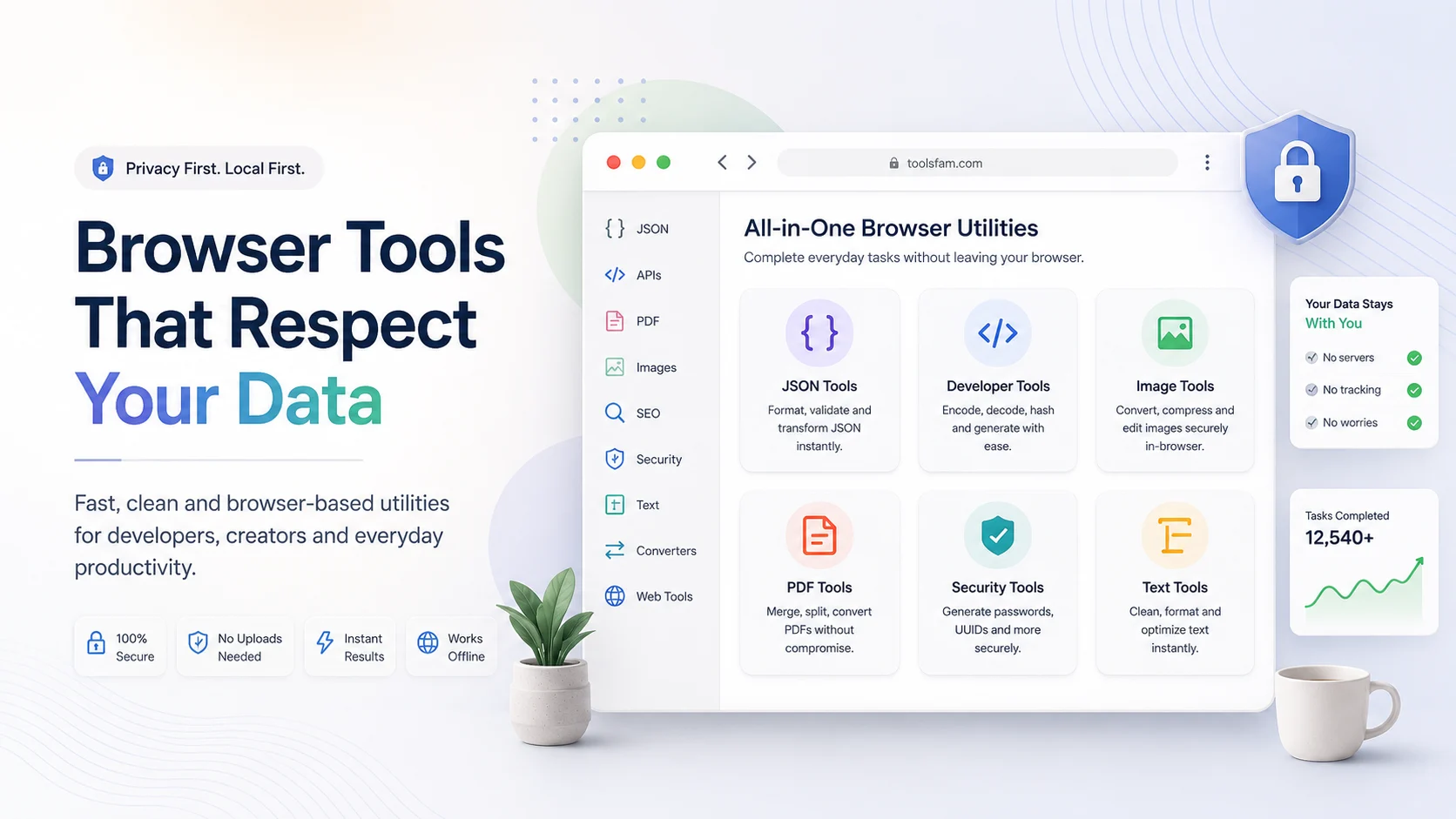
Images are one of the biggest reasons websites feel slow. A beautiful page can still perform badly if it uses oversized screenshots, uncompressed photos, heavy PNGs, or the wrong file format.
Image compression is not only about making files smaller. It is about choosing the right format, keeping enough quality, and serving assets that load quickly on real devices.
Why image compression matters
Large images can affect:
- Page speed
- Mobile performance
- SEO experience
- Bandwidth usage
- Conversion rates
- User patience
If your website has blog covers, product screenshots, tool previews, social cards, landing page graphics, or documentation images, you need a repeatable image workflow.
ToolsFam includes browser tools for image compression, resizing, and conversion. You can start from the tools page:
PNG, JPG, WebP, and AVIF: what is the difference?
PNG
PNG is useful for graphics, screenshots, transparent images, UI elements, logos, and images with sharp edges. PNG can preserve quality well, but it often creates larger files than other formats.
Use PNG when:
- You need transparency
- You are saving UI screenshots
- The image has text or sharp edges
- You need lossless quality
Avoid PNG for large photographic images unless there is a specific reason.
JPG
JPG is useful for photos and complex images with many colors. It usually gives much smaller files than PNG for photographic content, but it is lossy and does not support transparency.
Use JPG when:
- The image is a photo
- You do not need transparency
- Small file size matters
- Minor quality loss is acceptable
WebP
WebP is a strong modern format for web images. It often gives smaller file sizes than JPG and PNG while keeping good visual quality. It can also support transparency.
Use WebP when:
- You want smaller web images
- You are optimizing blog covers
- You are exporting product screenshots
- You need a good balance of quality and size
AVIF
AVIF can provide excellent compression and quality for modern websites. It can be very efficient, but encoding can be slower and not every workflow needs it.
Use AVIF when:
- You want very small image files
- Your audience uses modern browsers
- You can test quality carefully
- You have a fallback strategy if needed
Simple decision guide
| Use case | Best format |
|---|---|
| Photos | JPG, WebP, or AVIF |
| Transparent graphics | PNG or WebP |
| UI screenshots | PNG or WebP |
| Blog cover images | WebP |
| Social preview images | JPG, PNG, or WebP depending on platform support |
| Maximum compression | AVIF or WebP |
A practical website image workflow
Use this workflow before uploading images to your website:
- Resize first. Do not upload a 4000px image if your page displays it at 1200px.
- Choose the right format. Use JPG/WebP for photos, PNG/WebP for UI graphics, and WebP for most web assets.
- Compress carefully. Reduce file size without making text blurry or faces distorted.
- Preview before publishing. Check the final image on desktop and mobile.
- Name files clearly. Use descriptive names like
json-formatter-guide-cover.webp. - Add alt text. Describe the image naturally for accessibility and search understanding.
Common mistakes
- Uploading huge images directly from a camera or design tool
- Using PNG for large photos
- Compressing text-heavy screenshots too aggressively
- Forgetting mobile dimensions
- Using random file names like
image-final-new-2.png - Not checking how the image looks after compression
ToolsFam image workflows
ToolsFam can help with common image tasks such as:
- Image compression
- Image resizing
- Image conversion
- JPG to WebP conversion
- PNG to WebP conversion
- Background removal workflows
- Image utility tasks for creators and website owners
Start here:
Best settings for web images
There is no perfect single setting, but this is a good starting point:
- Hero images: 1200px to 1600px wide
- Blog covers: 1200px wide or 16:9 aspect ratio
- Thumbnails: 400px to 800px wide
- Format: WebP for most web images
- Quality: start around 75–85 and preview
- Keep text-heavy images sharper than photos
Final checklist
- Resize before compressing.
- Use WebP for most website images.
- Use PNG only when transparency or sharp lossless quality is needed.
- Use JPG for photos when WebP is not required.
- Use AVIF when maximum compression and modern support matter.
- Preview the image after compression.
- Use descriptive file names and alt text.
Good image optimization is one of the easiest ways to make a website feel faster and more professional. With a clean workflow, you can reduce file size, improve user experience, and publish better web assets without overcomplicating the process.