Local-First Browser Tools in 2026: What You Should and Should Not Upload Online
A practical guide to safer online tool workflows: what can be handled locally in the browser, what not to upload, and how to use browser-based tools more carefully.
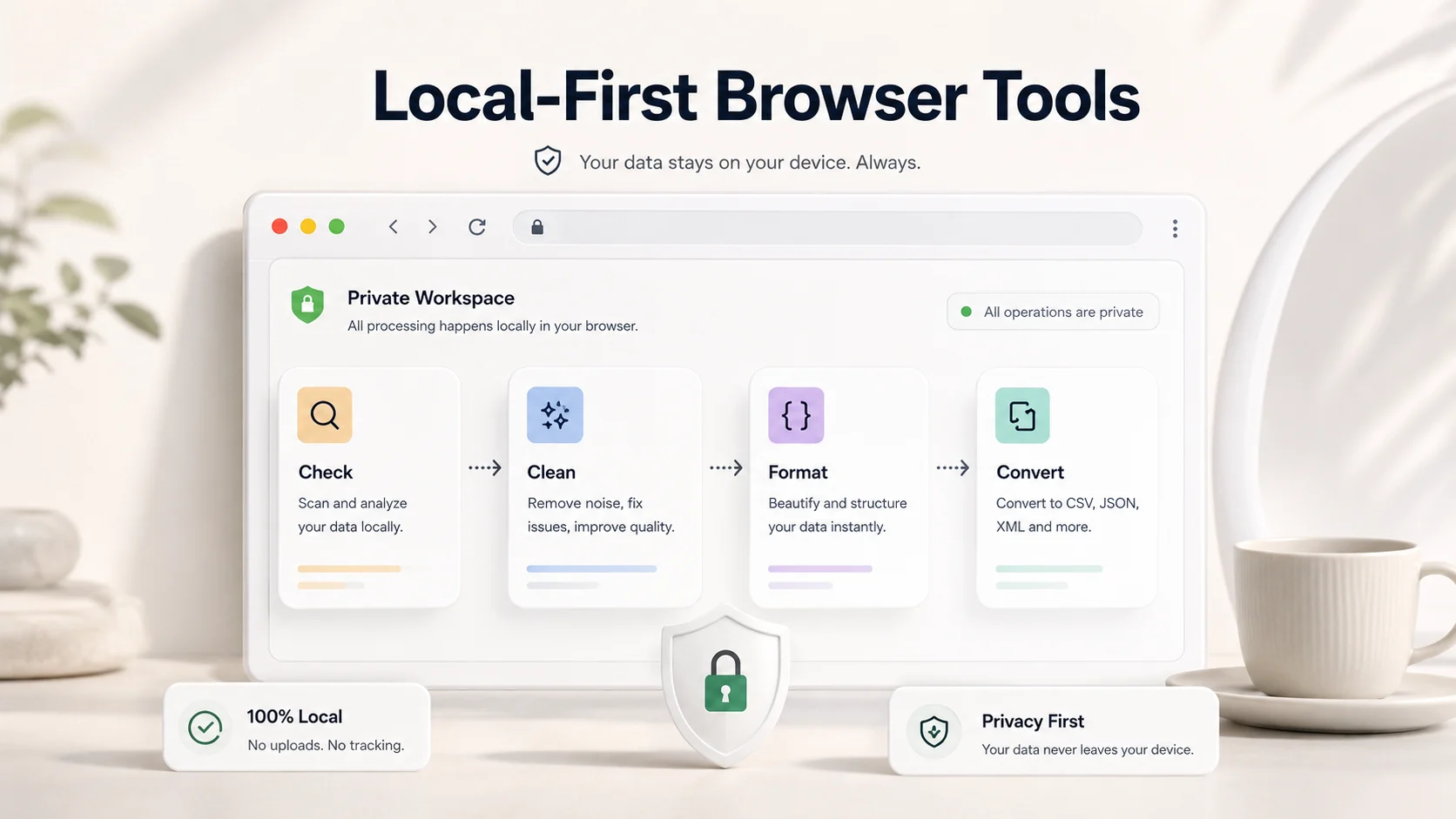
Online tools are useful because they remove friction. You paste JSON, convert an image, clean text, compress a PDF, or test an API without installing anything. The problem is that convenience can make people careless with sensitive data.
In 2026, the better workflow is not simply “never use online tools.” That is unrealistic. The better workflow is knowing which tasks are safe to run in a browser, which files should never be uploaded, and when a local-first tool is the smarter option.
This guide explains how local-first browser tools work, what to avoid uploading, and how to use platforms like ToolsFam more safely for everyday formatting, conversion, and productivity tasks.
What does local-first mean for browser tools?
A local-first browser tool tries to process your input inside your browser instead of sending everything to a server. For example, a JSON formatter can usually format pasted JSON directly in the browser. A text cleaner can process text locally. Some image and file operations can also happen client-side depending on the feature, browser support, file size, and library used.
This matters because data that never leaves your device has a smaller exposure surface than data uploaded to a remote server. It does not automatically make every workflow perfectly private, but it is a better default for many everyday tasks.
Modern browsers provide APIs that make local workflows possible. The MDN File API documentation explains how selected files can be represented in the browser, and the File System API allows certain web apps to interact with local files with user permission.
Why uploading files can be risky
Uploading is not automatically bad. Some tools genuinely need server-side processing. Large file conversion, OCR, virus scanning, AI processing, and heavy PDF operations may require backend infrastructure.
The risk appears when users upload private files without thinking. A simple file may contain more sensitive information than expected: customer names, invoice data, API tokens, hidden metadata, location information, internal comments, or business records.
From the application side, file uploads are also a known security-sensitive feature. The OWASP File Upload Cheat Sheet recommends strict validation, file size limits, extension allowlists, filename controls, and authorization for upload systems.
What you should avoid uploading to random online tools
Before using any online formatter, converter, compressor, or viewer, check whether the content is sensitive. Avoid uploading these unless you fully trust the service and understand its handling policy:
- API keys, access tokens, refresh tokens, JWTs, private keys, or secrets
- Customer data, invoices, contracts, bank statements, or IDs
- Internal company reports, private spreadsheets, or payroll files
- Medical, legal, academic, or government documents
- Images containing faces, license plates, documents, addresses, or location metadata
- Source code from private repositories
- Production logs that may contain emails, IP addresses, or user IDs
If the task is simple, prefer a browser-based workflow that can process locally. If the task requires upload, use a service you trust and remove sensitive parts first.
Good local-first use cases
Many common utility tasks are good candidates for local browser processing:
- Formatting JSON
- Validating JSON syntax
- Minifying text or code snippets
- Encoding and decoding URLs
- Generating UUIDs
- Formatting SQL, HTML, CSS, JavaScript, or TypeScript
- Cleaning text
- Converting simple structured data formats
- Previewing non-sensitive CSV or JSON data
For example, if an API response is failing because of a trailing comma or broken quote, you should not need to upload that data to a remote service. You can use a browser-based JSON workflow like the ToolsFam JSON Formatter or browse related utilities from the ToolsFam tools directory.
A safer workflow for online tools
Use this practical checklist before pasting or uploading anything:
- Classify the data first. Ask: does this contain secrets, private records, customer data, or internal business information?
- Remove sensitive values. Replace real names, tokens, emails, and IDs with safe placeholders.
- Use local-first tools where possible. Simple formatting and validation often do not need server upload.
- Check whether the page uses HTTPS. Some powerful browser features require secure contexts, and HTTPS is a basic trust requirement.
- Avoid unknown upload tools for private files. If you cannot find clear trust signals, do not upload sensitive content.
- Download only what you need. Avoid keeping processed copies of sensitive files in random folders.
- Clear browser data when needed. If a tool stores local history, clear it after working with sensitive examples.
Where ToolsFam fits
ToolsFam is being built around a simple idea: everyday browser tools should feel fast, clean, and practical. For developers, that may mean formatting JSON, testing APIs, converting data, generating hashes, or cleaning code. For creators and marketers, it may mean working with text, images, PDFs, SEO utilities, and web assets.
The right expectation is not that every possible file operation can happen locally. Some advanced tasks may still require server-side processing. But for many daily utility workflows, a browser-first approach reduces friction and can reduce unnecessary uploads.
You can start from the ToolsFam tools page and choose the utility that matches your task.
Common mistakes to avoid
1. Pasting real production secrets into formatters
Developers often paste API responses, config files, or JWTs into tools while debugging. Replace secrets first. Even better, create a sanitized test example.
2. Uploading PDFs without checking their contents
PDFs often contain hidden or forgotten information: names, emails, transaction details, signatures, comments, or metadata. Review the file before using any upload-based PDF tool.
3. Assuming “online” means “uploaded”
Not every web tool uploads your data. Some browser tools can process content locally. The important part is understanding the workflow and using trusted tools.
4. Assuming “local” means “risk-free”
Local processing reduces certain risks, but you still need good habits: HTTPS, trusted websites, careful clipboard use, and no real secrets in examples.
FAQ
Is it safe to paste JSON into an online formatter?
It depends on the data and the tool. Avoid pasting secrets, tokens, private customer data, or production logs into unknown tools. For normal non-sensitive JSON, a browser-based formatter can be a practical workflow.
Are browser-based tools better for privacy?
They can be, especially when processing happens locally and the data does not need to leave your device. But users should still check the tool, the task, and the sensitivity of the data.
Should I upload PDFs to online tools?
Only if the PDF is not sensitive or you trust the service. PDFs can contain private information, so review the content before uploading.
What files should never be uploaded to random tools?
Avoid uploading files with secrets, private keys, financial records, legal documents, medical data, customer information, internal business data, or private source code.
Where can I find browser-based tools for daily tasks?
You can explore ToolsFam tools for JSON, API, PDF, image, SEO, security, text, data, and converter workflows.
Final takeaway
The safest habit is simple: classify the data before using any tool. If it is sensitive, sanitize it or avoid upload-based workflows. If the task is simple, prefer browser-based tools that can complete the work locally where possible.
For everyday formatting, validation, conversion, and cleanup tasks, ToolsFam gives you a clean place to work through common browser utility workflows without unnecessary clutter.